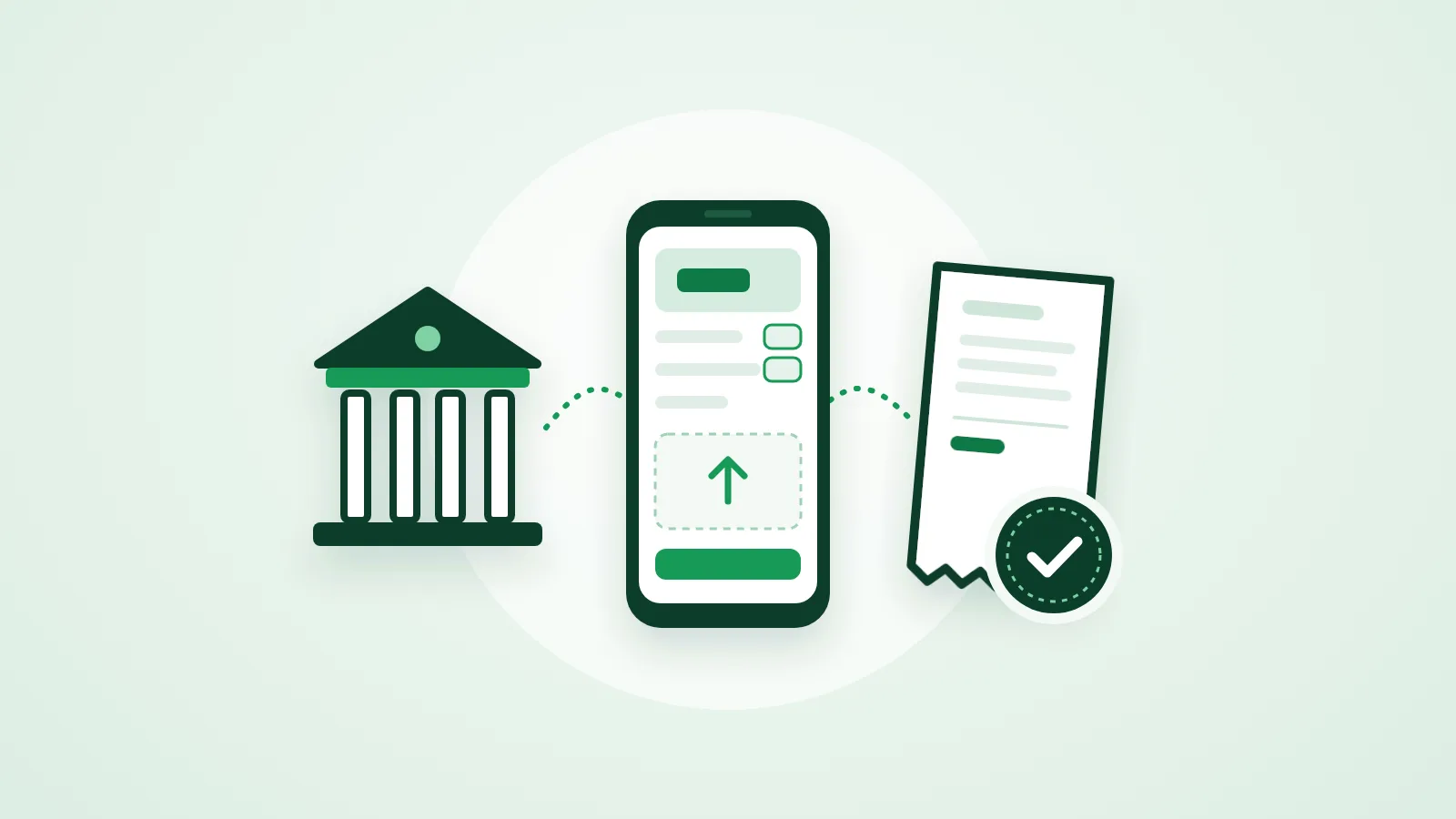
Bank transfer on Dekkan Merchant now follows the order from start to finish. The customer gets your account details, the amount and a payment page link as soon as they order, and uploads the transfer receipt there. You review the receipt on the order page and confirm it, record what arrived, or reject it with a reason, and the customer is told at every step.
What changed
Bank transfer used to be a note you wrote in settings that customers saw at checkout, and you tracked receipts yourself. Now every order moves through clear statuses, every receipt is kept, and you and your customer get a message at each step.
- Account details reach the customer automatically, with a payment page for their order.
- Review the receipt and confirm the transfer right from the order page.
- Record part payments when only part of the amount arrives.
- Remind the customer in one click.
- A history that keeps every receipt and its outcome.
How your customer pays
- They choose bank transfer at checkout.
- They get an email, and a WhatsApp message if it is on for your store, with the bank name, IBAN, amount and a link to the payment page.
- They open the payment page, copy the IBAN and amount with the copy buttons, and transfer from their banking app.
- They upload a photo or PDF of the receipt, and can add the transfer reference.
- They get a message when the receipt arrives, and another when you confirm the transfer.
Registered customers can also reach the payment page from the orders page in their account.
How you review a receipt
When a customer uploads a receipt you get an alert in the dashboard, and an email or WhatsApp message depending on your notification settings. The order page gives you these options:
- Confirm transfer received: the order is marked paid, and you can confirm the order in the same step.
- Only part arrived: enter what reached your account, and the customer is told what is left, with the payment page link.
- Reject receipt: when nothing arrived. A reason is required, and it reaches the customer with a link to upload a new receipt.
- Remind customer: before they upload a receipt, once every six hours and up to five times per order.
Following up on transfer orders
The transfer status shows on the order page and in your orders list, so you can see which orders need you:
- Waiting for customer
- Waiting for your review
- Part paid, waiting for the rest
- Cancelled, money to return
If you cancel an order that was partly or fully paid
A cancelled order takes no new receipts, and the cancellation message tells the customer that the store will return what they sent. If money reached you, the order shows "Cancelled, money to return" until you return it and press "Record the refund".
Your customers' receipts stay private
Receipts are stored in a private place only you can reach, and you open them from the order page through a link that works for one hour.
How to turn it on
- Open Settings, then Payment methods.
- Turn on bank transfer and enter the bank name, account holder name and IBAN, plus the account number if your bank uses one.
- Add a note for the customer if you like, such as the best time to transfer.
- Save, then place a test order in your store to see what your customer sees.
Frequently asked questions
Does Dekkan check that the money reached my account?
No. You check your bank statement and then confirm the transfer on the order page. The receipt helps you match the payment, but it is not confirmation from the bank.
What if the customer transfers less than the total?
Choose "Only part arrived" and enter what came in. The order stays unpaid, the customer gets what is left with the payment page link, and when they send the rest you confirm the transfer.
Where does the money go?
Straight to your bank account. Bank transfer money does not pass through Dekkan Merchant.